
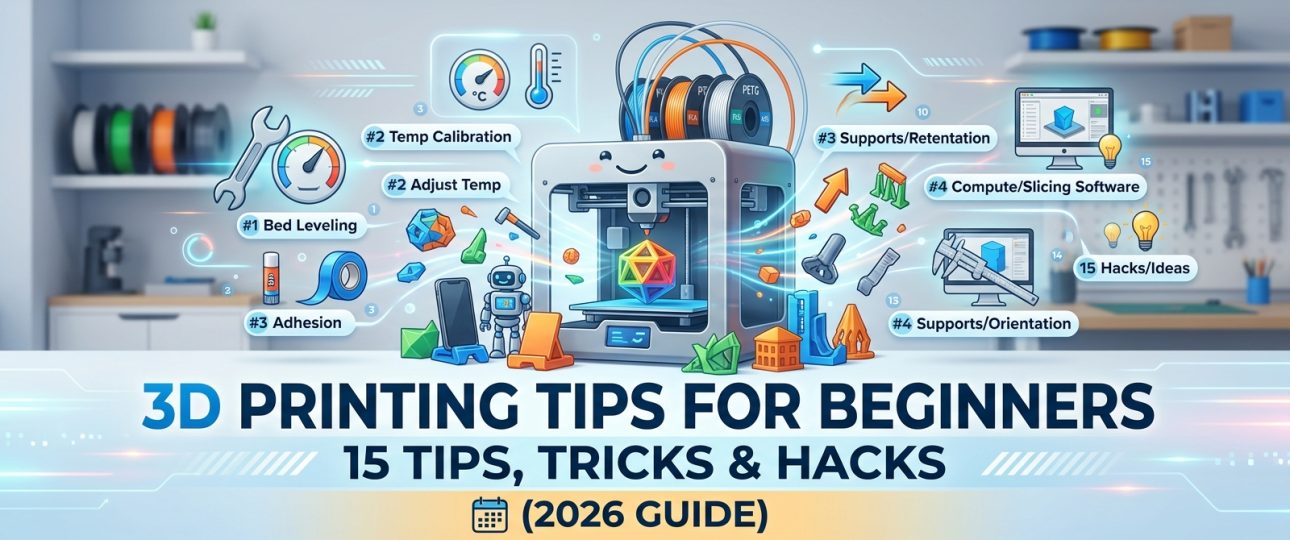
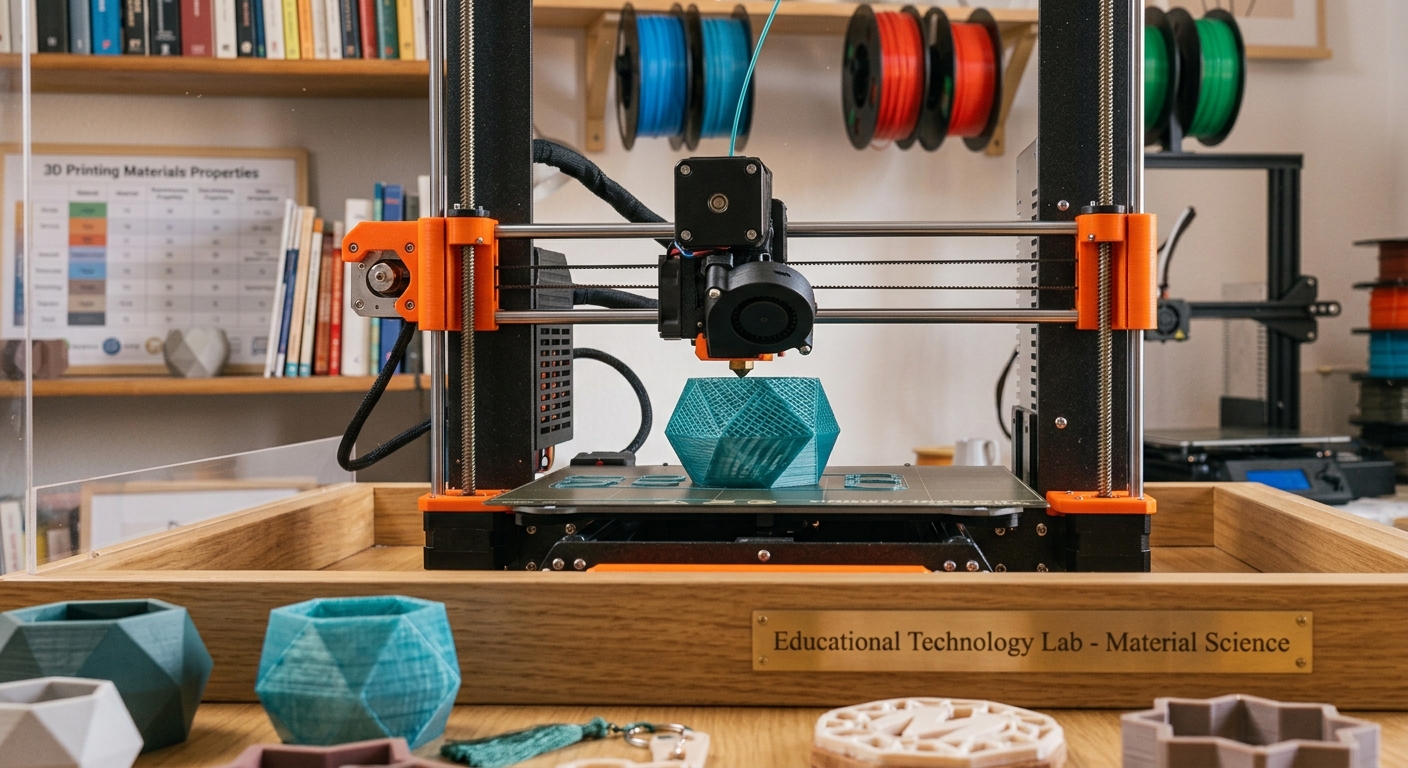
Every new 3D printer owner goes through the same cycle: excitement, a few good prints, then a wave of stringing, warping, or a print that just won’t stick to the bed. This guide collects the 3D printing tips that actually move the needle — the fixes experienced makers wish someone had told them on day one.
How Does a 3D Printer Work? (Quick Refresher)
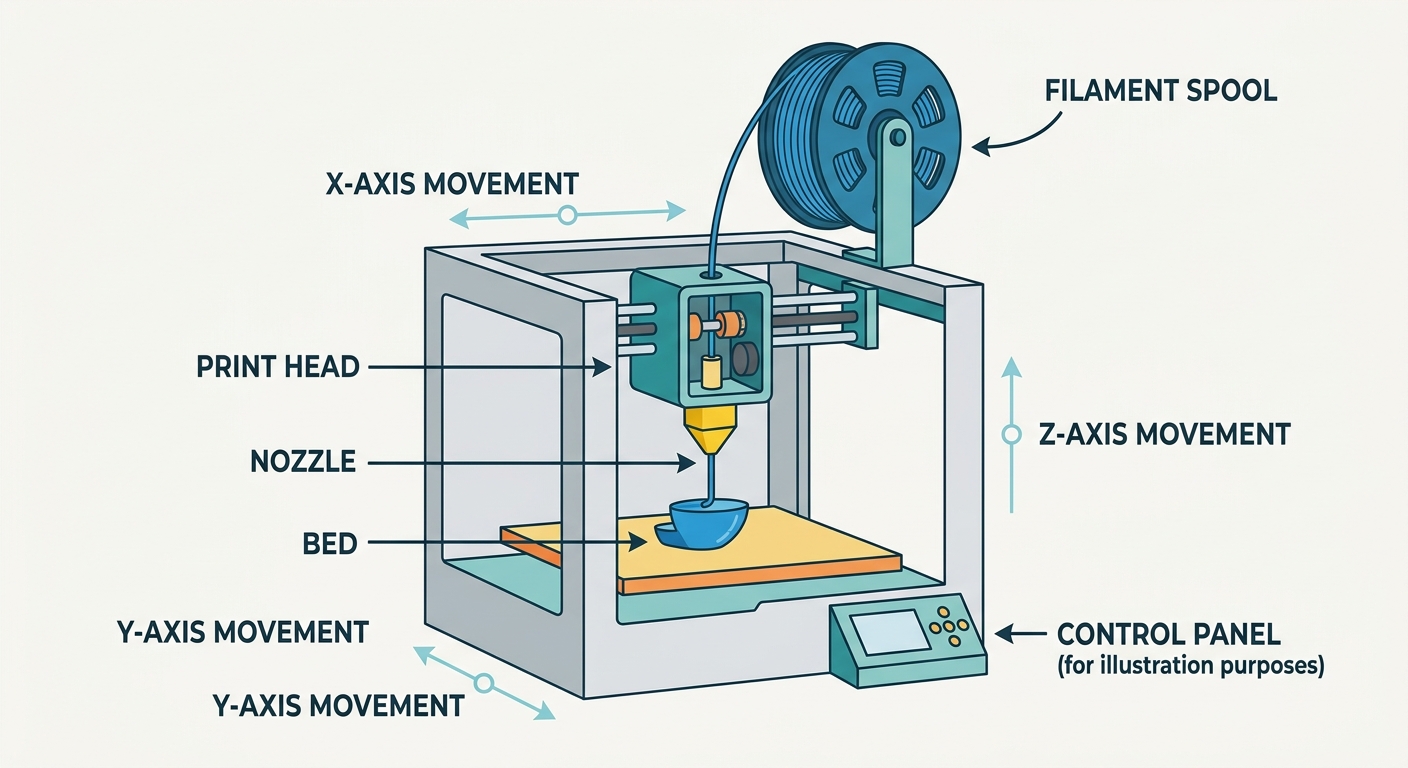
Before the tips, a fast refresher on how does a 3d printer work step by step, since half of troubleshooting is understanding what’s actually happening:
- A 3D model (usually an STL file) is loaded into slicing software
- The slicer converts the model into layer-by-layer instructions (G-code)
- The printer heats filament until it’s soft enough to extrude
- A nozzle deposits melted filament layer by layer, following the G-code path
- Each layer cools and bonds to the one below it, building the object from the bottom up
Most beginner problems trace back to one of these five steps — bad slicer settings, bed adhesion issues, or temperature problems.
15 3D Printing Tips and Tricks Every Beginner Should Know
Bed Adhesion & First Layers
- Level your bed before every few prints, not just once. Most failed prints trace back to an unlevel bed or wrong nozzle-to-bed distance.
- Clean the print bed with isopropyl alcohol. Oils from your fingers are enough to cause adhesion failures.
- Slow down your first layer speed. A slower first layer (roughly half your normal speed) dramatically improves adhesion.
- Use a brim for small or tall prints. Anything with a small footprint or a lot of height benefits from a printed brim to prevent lifting.
Filament & Temperature
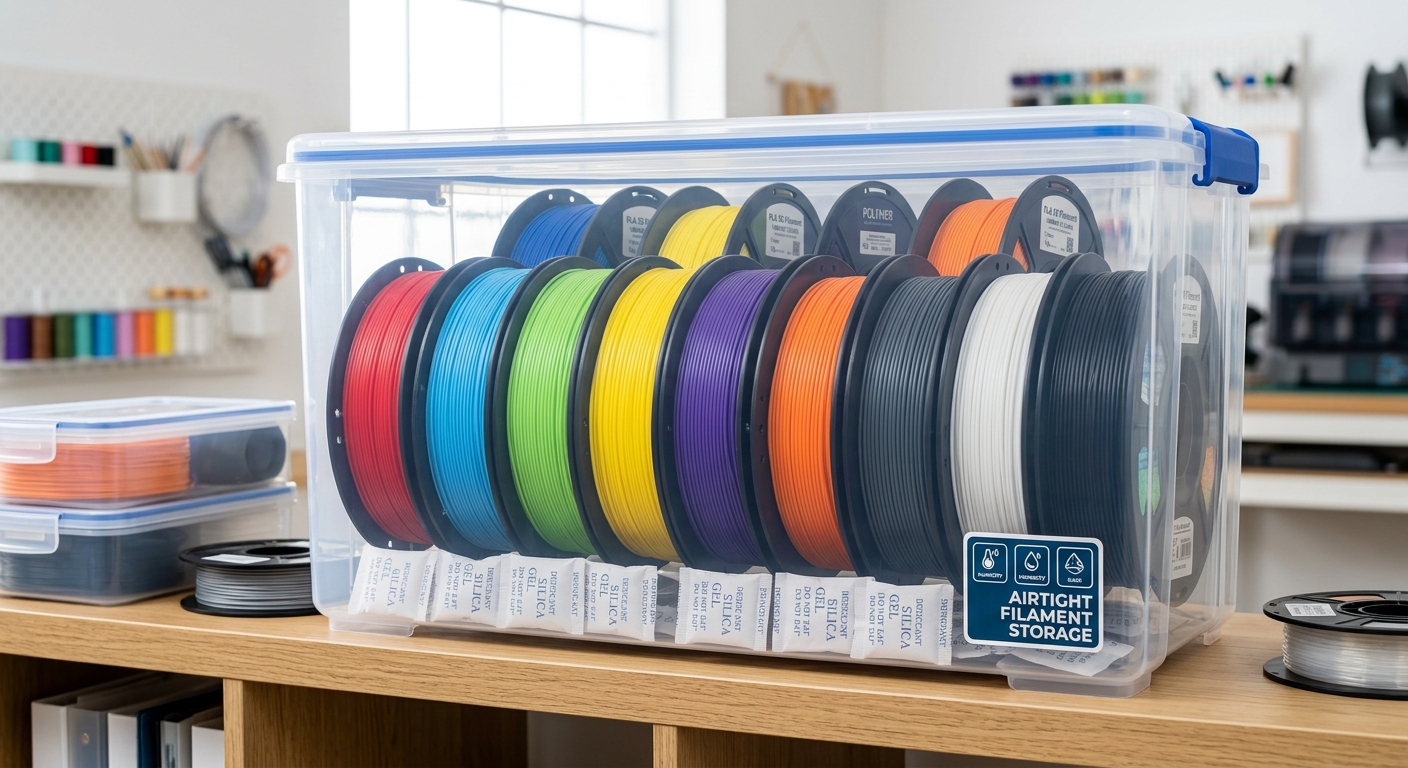
- Store filament in an airtight container with desiccant. PLA and especially PETG/nylon absorb moisture from the air, which causes popping, stringing, and weak layers.
- Dial in temperature with a temperature tower. Don’t trust the spool label blindly — every printer and filament batch behaves slightly differently.
- Match your nozzle temperature to your print speed. Faster prints often need slightly higher temperatures to keep up with flow.
Slicer Settings
- Increase wall count for stronger prints. 3 perimeter walls (instead of the default 2) noticeably improves strength on functional parts.
- Use supports only where needed, not everywhere. Over-supporting wastes filament and adds cleanup time — check your slicer’s support overhang angle setting.
- Enable “ironing” on top surfaces for a smoother finish, especially useful for display pieces and miniatures.
Reducing Common Defects
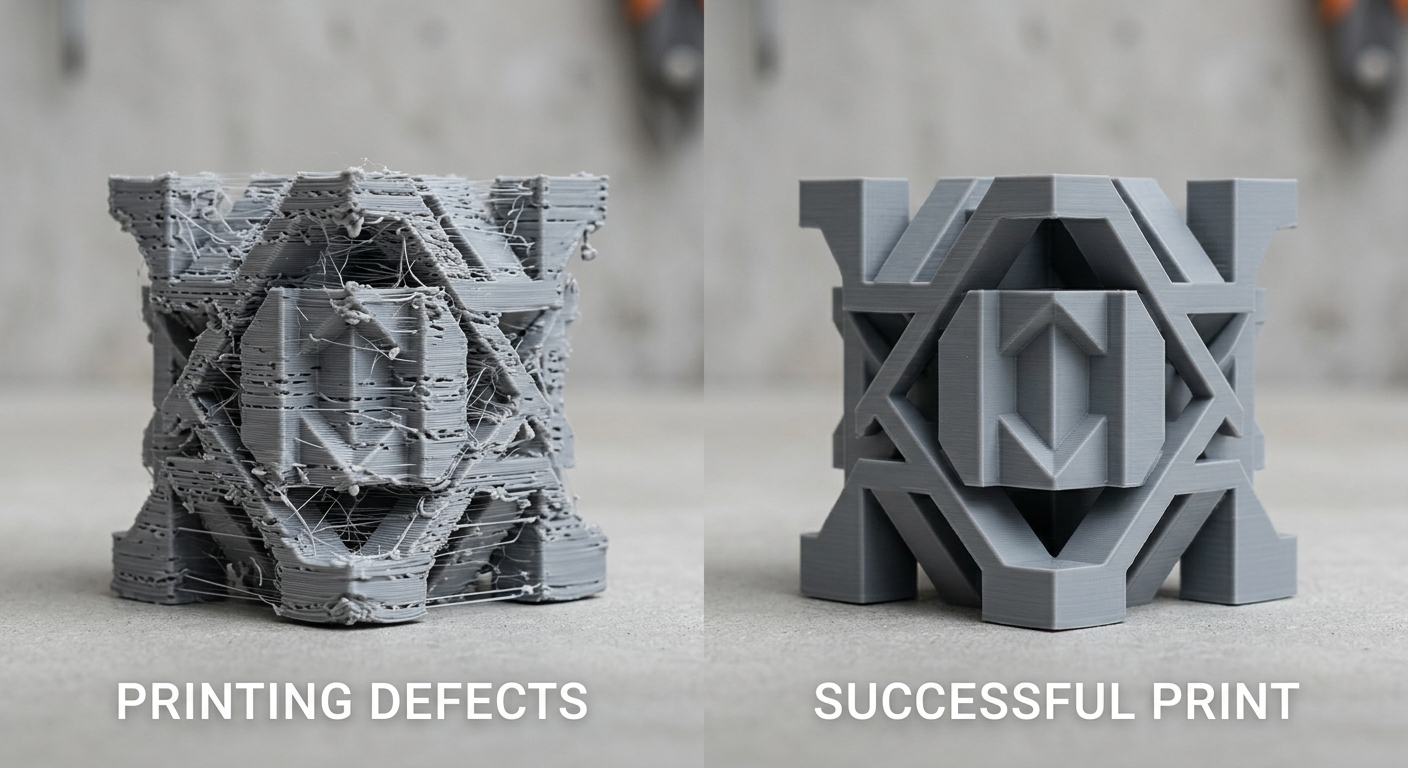
- Stringing? Lower your temperature and enable retraction. Most stringing is a temperature-too-high or retraction-too-low problem.
- Warping? Use a heated bed, enclosure, or brim — especially for ABS or ASA, which shrink more as they cool.
- Layer shifting? Check belt tension and lower your print speed on the affected axis.
Workflow Hacks
- Keep a settings notebook (or spreadsheet) per filament brand. Once you dial in a profile, save it — don’t re-guess every time.
- Print a calibration object after any hardware change. A quick calibration cube or the classic “3D Benchy” boat catches problems before you commit hours to a real print.
How to Use a 3D Printer for Beginners: A Simple First Workflow
If you’re setting up your very first printer, here’s the simplest possible path from unboxing to a finished print:
- Level the bed and confirm first-layer squish is correct
- Load filament and confirm consistent extrusion
- Download or purchase a beginner-friendly STL file (something small, low-detail)
- Slice it using your printer manufacturer’s recommended profile
- Print it, and don’t touch the printer until it finishes
- Review the result against common defect guides (stringing, warping, layer shifts) before your next print
3D Printing Hacks That Save Time and Filament
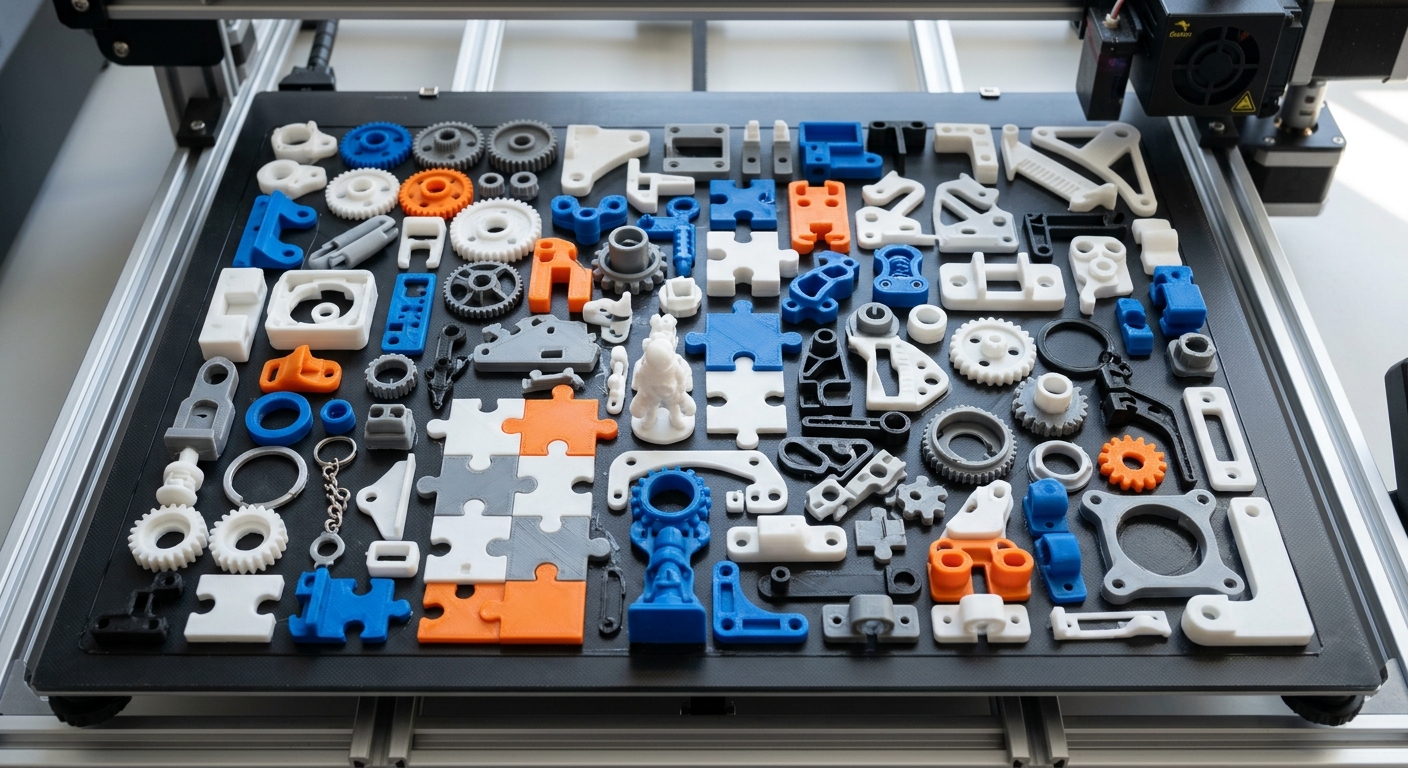
- Nest multiple small prints on one plate instead of printing one at a time
- Use “vase mode” for decorative, hollow objects to save massive amounts of filament
- Reuse failed prints as calibration test material instead of tossing them
- Batch-print supports-heavy models overnight so failures don’t cost you a work day
Where to Apply These Tips
These tips matter most on detailed prints — miniatures, character models, and anything with fine features are the most unforgiving when it comes to temperature, retraction, and wall settings. If you’re printing detailed STL files (tabletop miniatures, character busts, and similar models), start with a well-supported, pre-optimized file rather than a rough free download — it removes half the guesswork covered above. Browse ready-to-print, pre-supported files at STLSpecial.
Final Thoughts
Most 3D printing problems aren’t printer problems — they’re settings problems. Work through this list once, save your working profile, and you’ll spend far more time enjoying finished prints than troubleshooting failed ones.