
File Formats: Think of Them as Your Printer’s Love Language
So you’ve jumped into 3D printing, and suddenly everyone’s throwing around “STL file” like it’s common knowledge. What the heck is STL format, anyway? And more importantly—should you even be using it?
Here’s the deal: file formats are basically how your 3D printer speaks. You wouldn’t hand a French novel to someone who only reads English, right? Same thing here. Your printer needs files it can actually understand. STL file format has been the go-to for ages, but honestly? Things are changing pretty fast.
Here’s the thing—picking the right 3D model format is just as important as actually designing your model. Mess this up, and you’ll end up with missing details, weird scaling issues, or files that just refuse to print. STL format is still super popular (we’re talking everywhere), but a lot of pros are starting to say it’s kinda outdated, especially for engineering stuff and complicated projects.
Quick rundown of what you need to know:
- STL is basically the universal language everyone uses (it’s mesh-based)
- STEP is the fancy CAD format that’s perfect when you need precision or want to remix stuff
- 3MF is the new kid on the block trying to replace STL by cramming in everything—color, materials, settings, the works
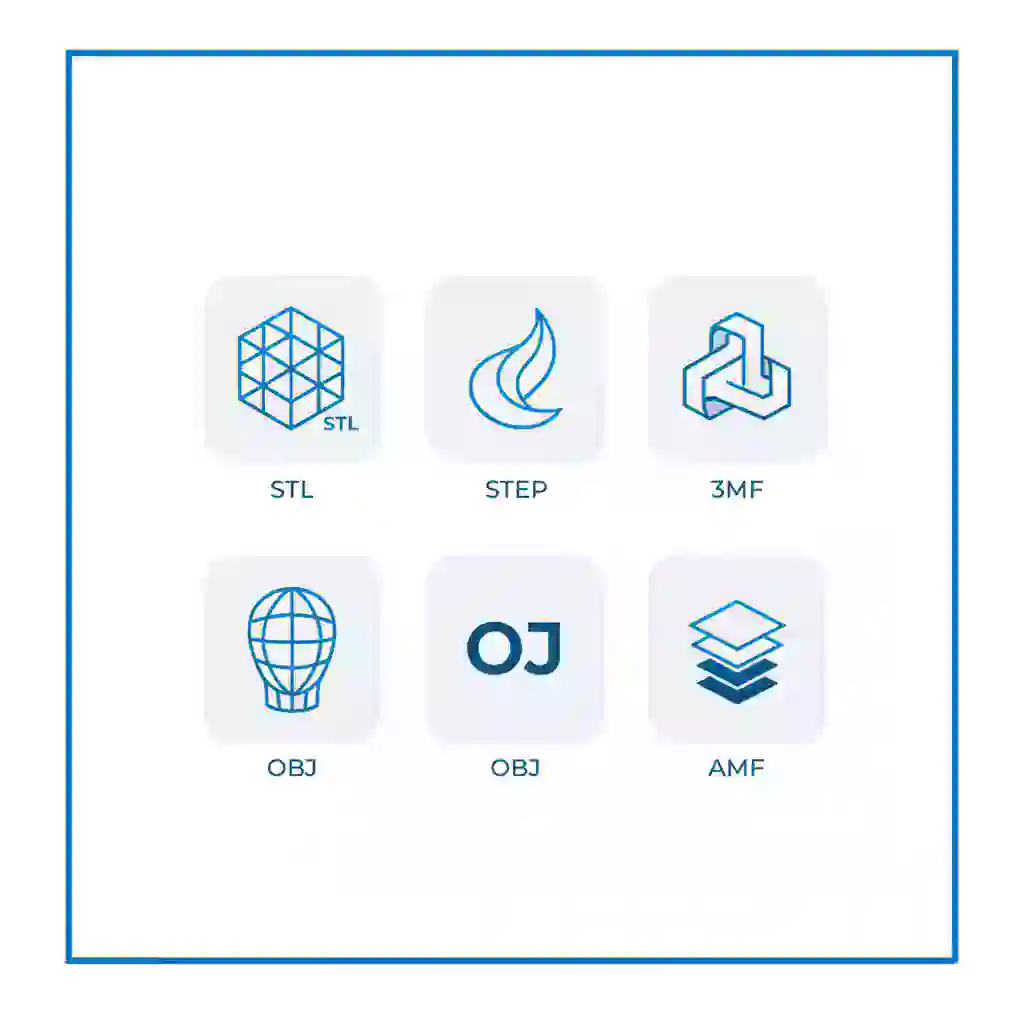
Quick Cheat Sheet: Which One Do I Actually Use?
| Format | Use It For | Why It’s Cool | The Catch |
|---|---|---|---|
| STL | Simple stuff, hobby projects | Works with literally everything | Zero color, texture, or material info |
| 3MF | Complex multi-material prints | Everything in one neat package | Still kind of new, not everywhere yet |
| STEP | Engineering parts, functional stuff | Super precise, easy to edit | You’ll need CAD software |
| OBJ | Artsy models with colors/textures | Looks gorgeous | Files get massive |
| AMF | Technical projects with curves | Better geometry than STL | Nobody really uses it much |
STL (STereoLithography): Everyone Uses It, But Here’s Why It’s Getting Old
STL Files 101: The Basics
The STL file format is basically your 3D model wrapped up in a bunch of tiny triangles (fancy term: tessellation). Picture covering your design with thousands of little triangular Post-it notes—that’s pretty much what an STL 3D model is.
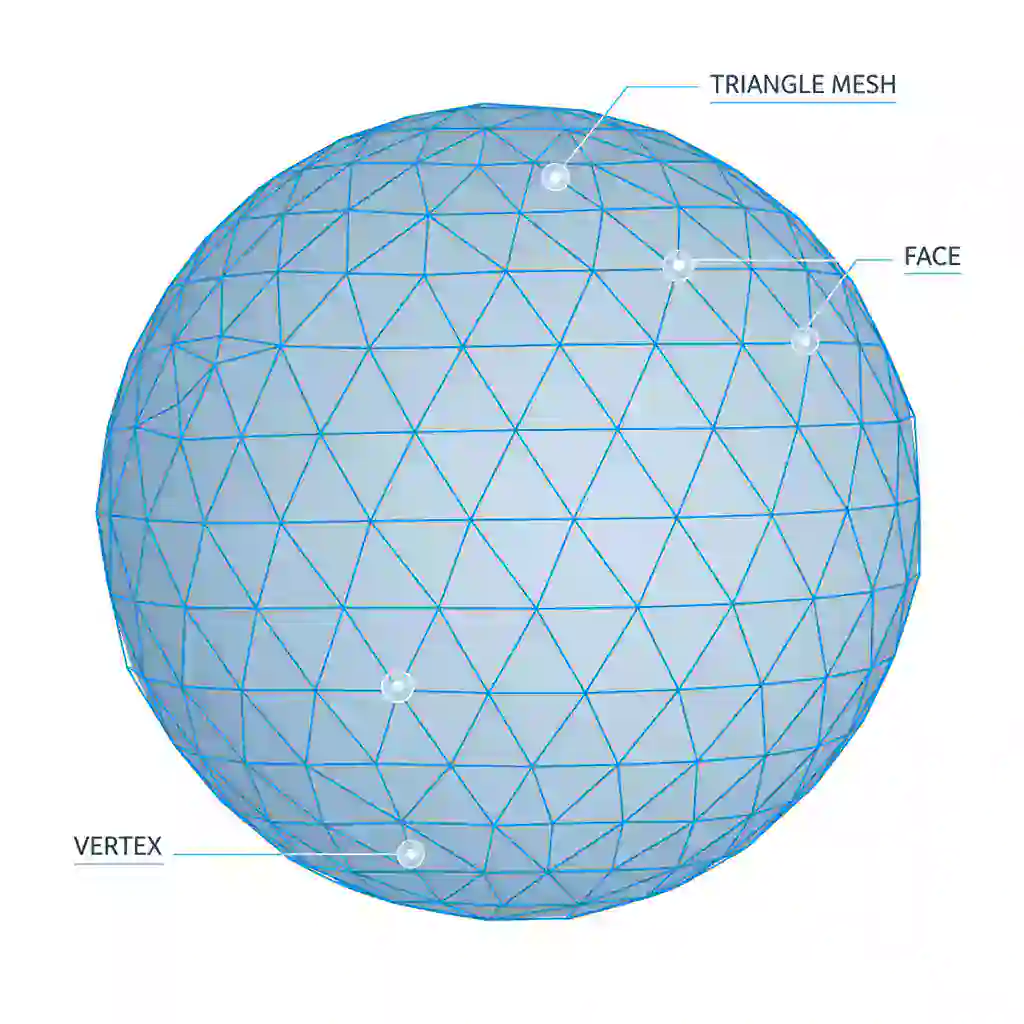
Why STL took over the world:
- Works with basically every 3D printer and software out there
- Simple enough that it’s easy to handle
- Perfect for basic prototyping and straightforward parts
- The stereolithography file format has been around forever, so everyone trusts it
The Problem With STL: Why People Complain About It
Don’t get me wrong—STL format is still popular. But it’s got some real issues you should know about:
1. It’s Shape Only, Nothing Else STL files just store the shape. No color, no texture, no fancy material properties. Want a rainbow print? STL’s gonna leave you hanging.
2. Everything Gets Chunky Curved surfaces? STL approximates them with a bunch of small triangles. Export an STL file with default settings from your CAD software, and you’ll probably see “faceting”—basically your smooth curves look all blocky and weird. This drives people crazy about STL for 3D printing.
3. It’s a “Dead End” Format Once you’ve turned your fancy parametric CAD model into STL format, boom—the resolution is locked. Editing it later (remixing) or resizing it? Good luck with that. It’s like converting a nice vector image into a crappy low-res JPEG. You’re not getting that quality back.
How to Not Screw Up Your STL Files
Getting Your STL Export Right
The quality of what comes out of your printer depends entirely on what resolution and tolerance settings you pick when exporting from CAD. Here’s what actually matters:

Do this when creating STL files:
- Use Binary STL format (way smaller than ASCII STL)
- Play with tolerance settings to balance file size (try to keep it under 10MB) and how detailed it looks
- For curves, bump up the triangle count so things don’t look faceted
- Experiment with different export settings until you find what works
The 4 STL Screw-Ups That’ll Ruin Your Day (And How to Fix ‘Em)
Before you hit slice and print, check for these annoying issues:
1. Boundary Edges (or “Non-Manifold Edges” if You Wanna Sound Smart) These are holes in your mesh. Your 3D slicer freaks out because it can’t figure out what’s inside vs. outside.
2. Intersecting Faces Multiple objects are trying to occupy the same space. Your slicer’s gonna fail. This usually happens when you smoosh objects together without properly merging them.
3. Non-Manifold Edges (Yeah, Another One) When more than two faces connect to the same edge, it’s confusing. Like trying to have three walls meet at one corner—it just doesn’t make sense.
4. Way Too Many Triangles Files that are unnecessarily packed with triangles get huge and slow everything down without making your print any better.

How to fix corrupted STL files: Grab some repair software:
- Netfabb (the pro option for STL file repair)
- Meshmixer (free and pretty easy to use)
- 3D Builder (comes with Windows, good for quick fixes)
- Online STL viewer tools can spot problems before you even download
These tools can automatically fix corrupted STL files when you can’t (or don’t wanna) mess with the original CAD file.
STEP Format: The Pro’s Choice for Real Parts
STEP vs STL: What’s Actually Different?
While STL files fake your design with triangles, STEP format stores the actual solid geometry using something called Boundary Representation (BREP). Basically, it describes features exactly—a circle stays a perfect circle, not a bunch of straight edges pretending to be round.
Here’s an analogy that’ll stick: STEP is like a RAW photo or an SVG vector graphic. STL is like a JPEG. One keeps all the original data and you can edit it forever without losing quality. The other? It’s flattened and approximate.
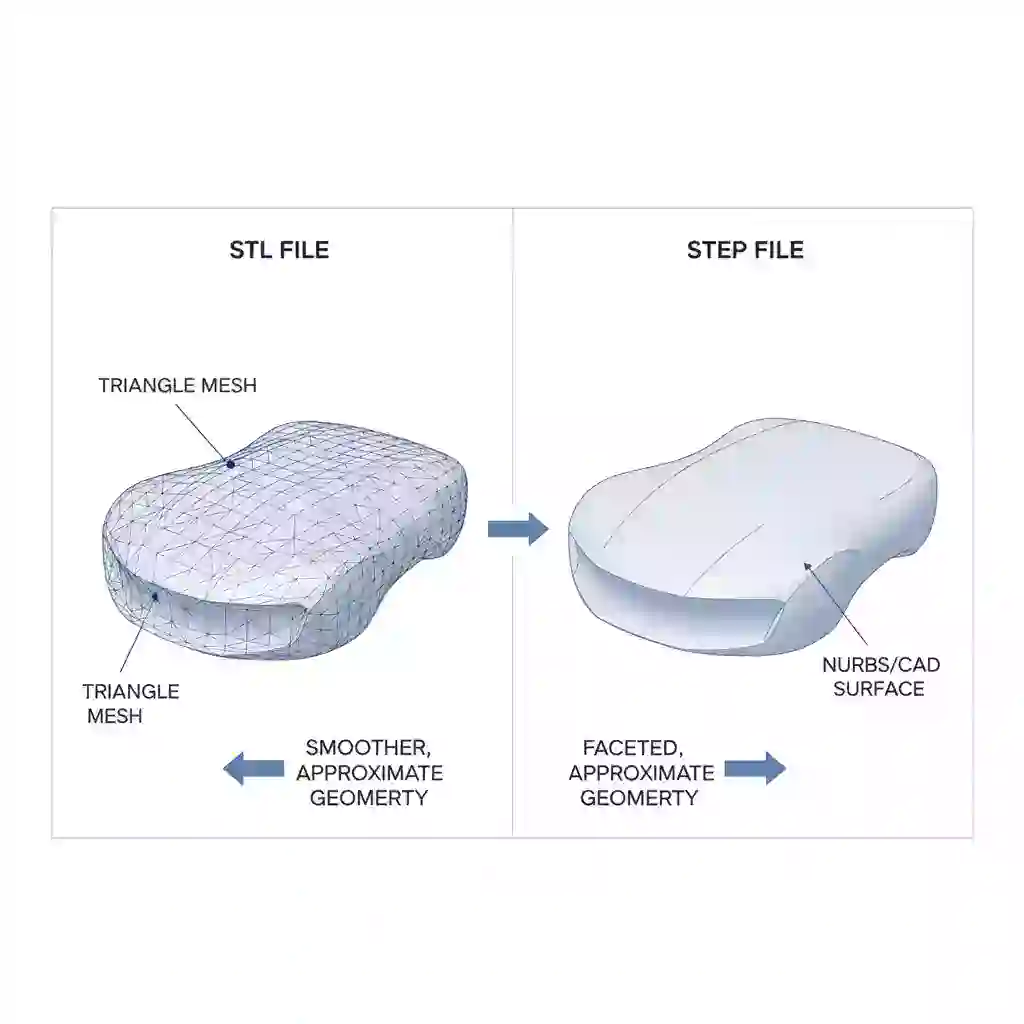
Why Designers Are Obsessed With STEP Files
1. It’s Actually Precise STEP format keeps the real mathematical definition of curves and surfaces, unlike STL’s triangle guesswork. When you need exact dimensions, STEP’s your friend.
2. Smaller Files, Somehow A STEP file is often way smaller than a high-res STL of the same thing because it stores math formulas instead of millions of triangles.
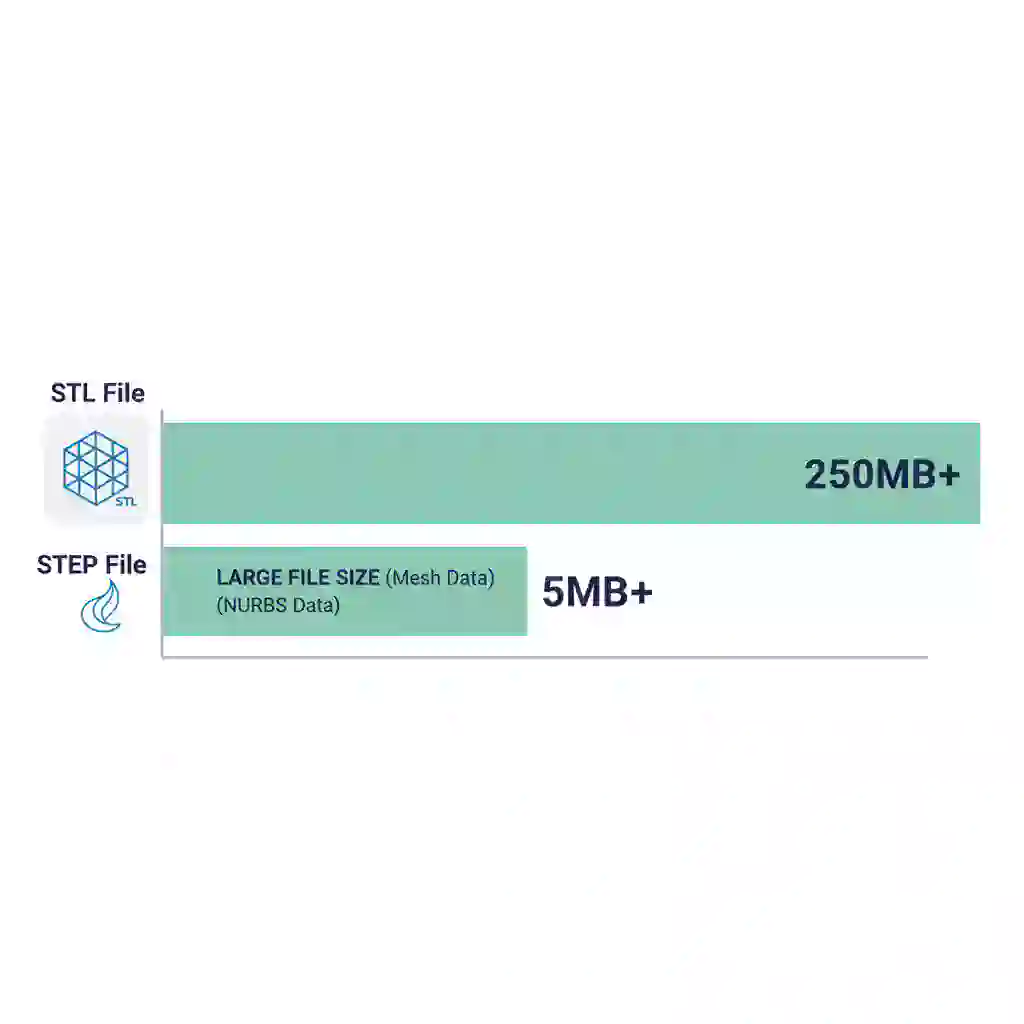
3. Everyone Can Edit It (Remixing Made Easy) STEP is supported by pretty much every CAD platform (SolidWorks, Fusion 360, OnShape, you name it) for swapping solid models. It’s the gold standard in engineering.
Actually Using STEP Files for 3D Printing
Getting quotes from print services: Companies like Xometry take STEP files for accurate quotes on functional parts.
Modern slicers are catching up: More and more slicers (like PrusaSlicer and Bambu Studio) can import STEP files directly. When you do, the slicer converts it to mesh (STL) internally right before slicing. Plot twist: this conversion is often better than your CAD software’s default STL export, so you get smoother curves.

Heads up though: Converting STL to STEP? Nearly impossible. STL doesn’t have the parametric data you’d need. Always save your STEP files if you think you’ll need to edit stuff later!
Beyond STL: 3MF, AMF, and OBJ When You Need More
3MF (3D Manufacturing Format): The New Hotness
Big players like Autodesk, Microsoft, and HP got together to make 3MF specifically to fix STL’s problems (and because AMF wasn’t catching on).
What makes 3MF awesome:
- Super compact and efficient (it’s actually just a ZIP file with a different name)
- Handles color, texture, multiple materials, and build orientation
- Stores your slicer settings right in the file
- More secure than STL format
- Built specifically for modern 3D printing

When to use 3MF:
- Multi-color or multi-material prints
- Consumer products with lots of details
- When you wanna share complete print-ready projects
- Archiving projects with all the settings
AMF (Additive Manufacturing File): The Format Nobody Uses
ASTM International made AMF to fix STL’s problems. It’s technically pretty good, but… yeah, not many people use it.
What AMF does well:
- Supports curved triangles for better accuracy
- Smaller files than equivalent STLs
- Can store material, texture, and metadata
- Better for complex shapes
The problem: Not much software support compared to 3MF. Even though it’s technically better than STL in lots of ways, 3MF’s winning the popularity contest.
OBJ Format: For the Artists Out There
OBJ comes from the graphics and animation world, so it’s perfect for artistic and visually detailed stuff.
Use it for:
- Graphics, animation, and game stuff
- Detailed models that need color and texture
- Miniatures and decorative prints
Cool features:
- Handles color and texture (needs a companion MTL file though)
- Works with tons of 3D modeling software
- Great for STL miniatures and character models
Just so you know: OBJ files can get ridiculously large because of all the extra texture and material data. Not great for simple functional parts.
Why You Should Share Your Source Files (Seriously)
The “Compiled Binary” Thing
Here’s the deal: for engineers and parametric design folks, only giving out an STL file is like handing someone a compiled program without the source code. Sure, they can use it, but they can’t really understand or change it.
Real Remixing Needs Real Files
When you share source formats (STEP or native CAD files like .f3d or .sldprt), people can actually modify dimensions and tweak parameters easily. Trying to reverse-engineer an STL mesh? That’s tedious and usually produces garbage results.
If you’re creating stuff, do this:
- For functional models you designed in CAD, ALWAYS upload the STEP file along with your STL or 3MF
- If you can, throw in the native file (like Fusion 360) to keep the design history
- Maybe add a README explaining key parameters and what you were thinking
- Join STL marketplace communities that actually care about open design
Bonus Tip: Web 3D Stuff
For showing off 3D models in browsers or mobile apps, glTF (GL Transmission Format) is the new standard. People call it the “JPEG of 3D” because it loads fast and renders efficiently. Not usually for printing, but good to know if you’re showcasing designs online with an STL viewer.
So Which One Should You Actually Use?
Quick Decision Guide
For maximum compatibility and simple stuff: Go with STL format. Just export at high resolution so it doesn’t look faceted. Still the safest bet for beginners.
For color and texture (simple projects): Pick OBJ if your model’s got visual details and you need basic color.
For complex, multi-material stuff or complete archives: Use 3MF. It’s the future of consumer 3D printing and support’s growing fast.
For engineering, functional parts, and sharing editable models: Always go STEP format. You get precision, editability, and professional-level capabilities.
What’s Coming Next
3D printing’s evolving like crazy. STL format’s gonna stick around (it’s everywhere)—but adopting better formats like STEP and 3MF is gonna be essential for the future of design, remixing, and digital manufacturing.
If you’re just starting out, stick with STL to learn the ropes. But as you level up, check out STEP for functional parts and 3MF for complicated projects. Understanding these 3D model formats will make you way more capable and versatile.
The stuff you really need to remember:
- Learn to export quality STL files from your modeling software
- Always check for and fix STL file errors before printing
- Save your source files (STEP or native CAD) for future edits
- Check out free STL files and premium STL downloads to see how others do it
- Join communities that share printable STL files and support open design
Whether you’re downloading STL file collections, making custom STL models, or optimizing STL for printing, understanding file formats is literally your foundation for 3D printing success. Get these basics down, and you’ll dodge all the frustration and mysterious errors that hit beginners who just jump straight to printing without knowing what’s actually going on.
Happy printing! 🎉